
Purpose
The rate at which I save YouTube videos is always faster than the rate at which I can actually watch them. Research videos I’ve bookmarked, videos I’ve saved for later, links I copied because they might become references—they keep piling up. The bottleneck is time.
Most existing YouTube summarization tools rely on embedded subtitles, i.e., transcripts uploaded by the creator. If a video has no transcript, summarization becomes impossible. Videos without Korean subtitles, videos with low-quality auto-captions, or videos with no captions at all still require watching from start to finish.
This workflow bypasses that limitation. Instead of depending on transcripts, it pulls video information via oEmbed and HTML parsing, then has a Gemini model generate the summary directly. It runs on n8n (an automation tool), and the final output is saved as a Markdown file. This post records the full setup process from scratch.
Methodology
https://n8n.io/workflows/2679-ai-powered-youtube-video-summarization-and-analysis/
I followed the structure of that workflow, but:
I did not connect Telegram.
I replaced the OpenAI API integration with a Gemini API integration.
I modified it so the response is returned as Markdown and saved locally.
Run Docker Desktop

Docker Desktop running screen
Docker menu bar status check
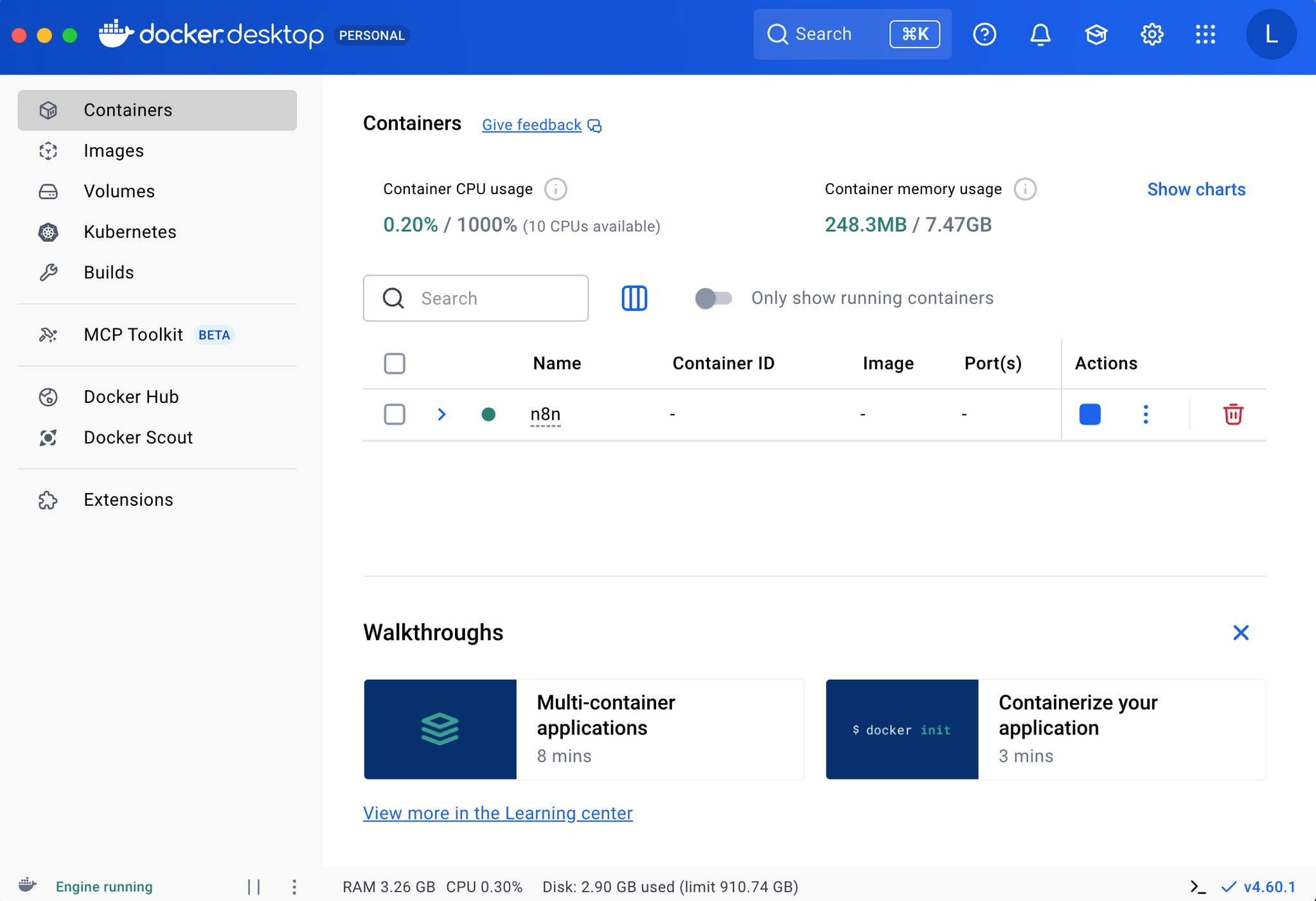
Docker lets you run applications in isolated container environments. Since n8n runs inside a container, the first step is to confirm that the Docker daemon is running. Launch Docker from Applications and check that the whale icon in the menu bar shows a running state.
You can verify it in Terminal with:
docker --version
docker compose version
docker ps
If versions and the container list print without errors, Docker is running correctly.
Move into the project folder
Because both the docker compose command and the workflow files live in this folder, you must move into it before running anything.
cd ~/Desktop/n8n
After moving, confirm that docker-compose.yml exists in the current directory.
Configure .env
.env is an environment variable file used to keep sensitive values—like API keys—outside your code. Without these values, the container may fail to start, or the summarization step may fail. The required fields are:
GOOGLE_GEMINI_API_KEY=...YOUR_REAL_KEY...
GEMINI_MODEL=gemini-2.5-flash
N8N_ENCRYPTION_KEY=a_sufficiently_long_random_string
N8N_HOST=localhost
GENERIC_TIMEZONE=Asia/Seoul
The following are optional. If you are not using them, you can leave them empty:
OPENAI_API_KEY=
TELEGRAM_BOT_TOKEN=
TELEGRAM_CHAT_ID=
When saving, be careful not to introduce spaces or quotes into the values. A lot of unexpected errors originate from this step.
Start the n8n container
n8n is a workflow automation tool that lets you connect services into automated flows without writing code. One command starts the container in the background:
docker compose up -d
up creates (or reuses) containers, networks, and volumes and starts them.
-d runs in detached mode so the terminal is not occupied.
Then check status with:
docker compose ps
docker compose logs --tail=100 n8n
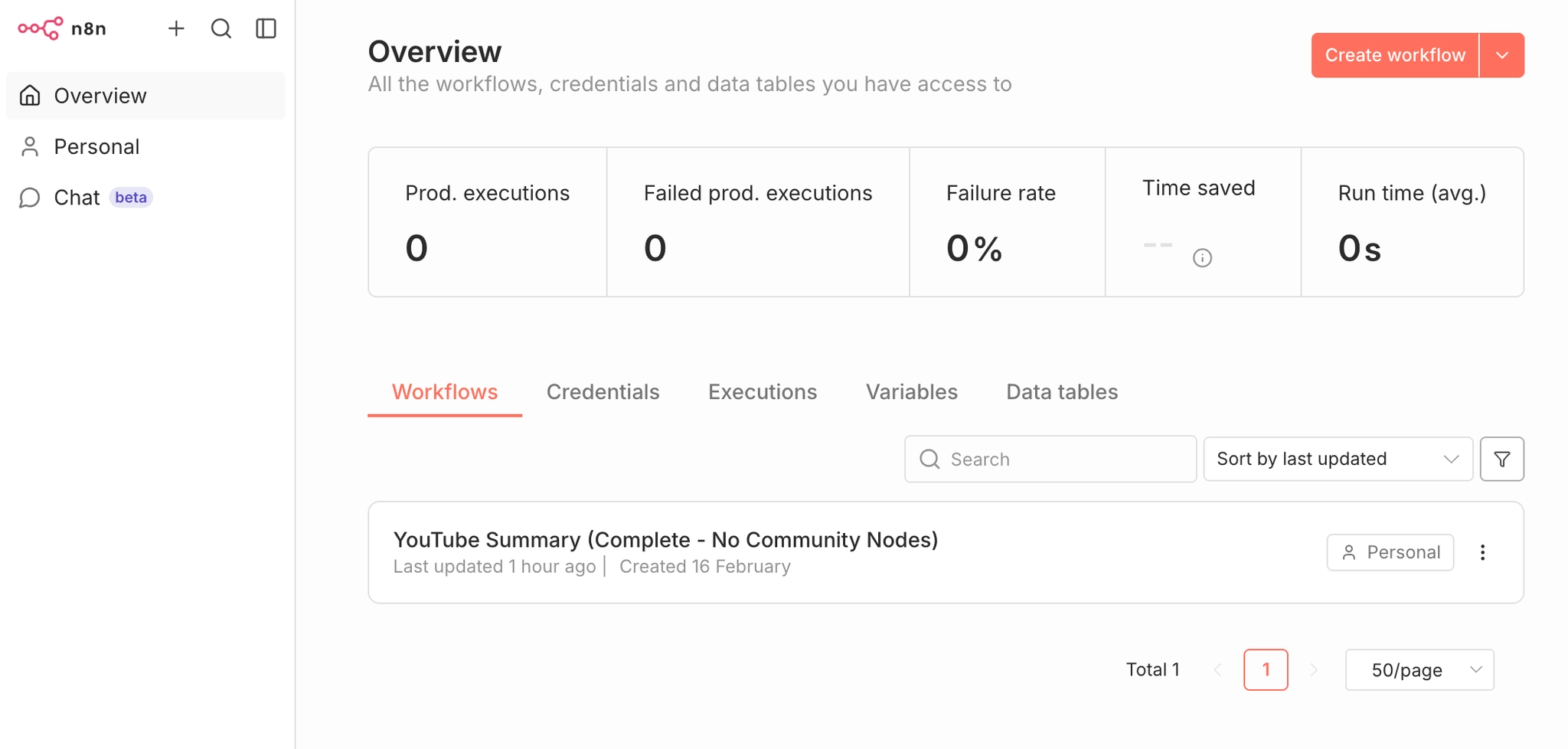
If the n8n service is Up and the logs show the editor URL, it has started correctly.
n8n container running status check
Import the workflow
Workflow Import screen
n8n does not automatically load workflow JSON files from disk. You must import them manually.
Open http://localhost:5678 in your browser, then go to Workflows → Import from File, and load youtube-summarization-workflow.json. After you click Save, if there are no red error nodes on the canvas, the import succeeded.
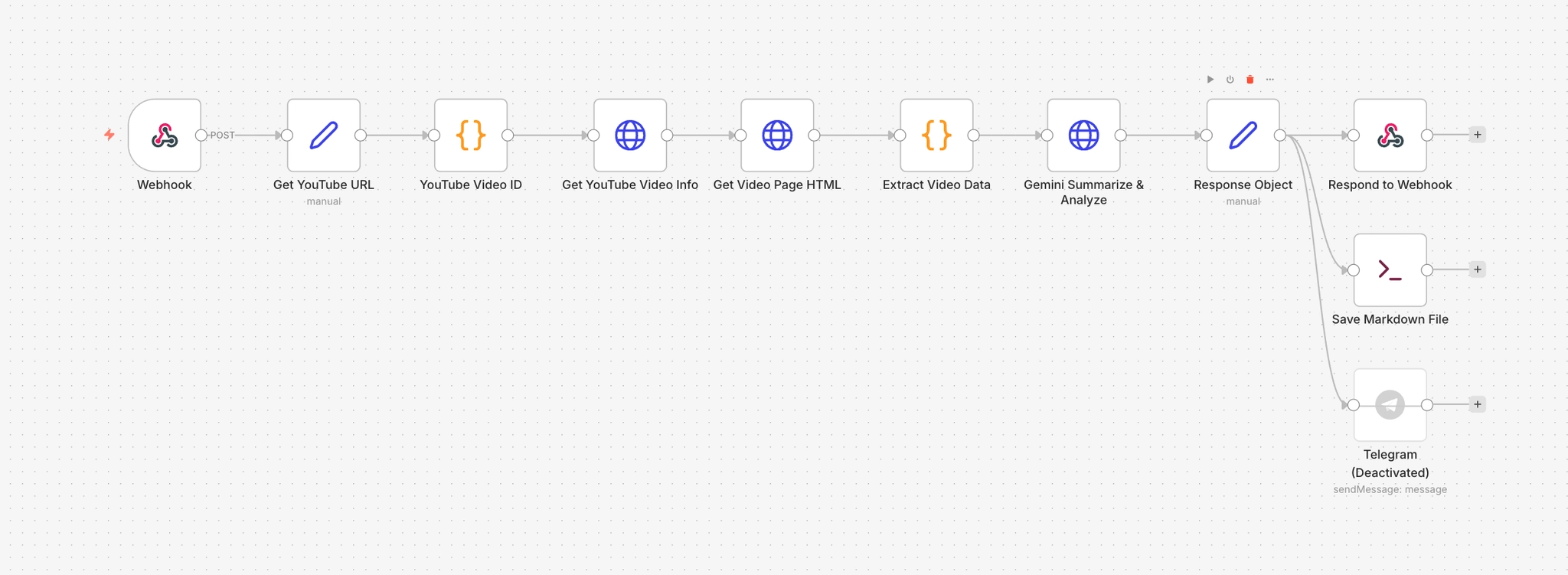
Below is a brief explanation of what each node does.
Webhook
The entry point that receives external POST requests. When a request comes to the /ytube path, the workflow starts. Since responseMode is set to responseNode, the response is handled by the later Respond to Webhook node.
Get YouTube URL
Extracts youtubeUrl from the webhook request body and passes it downstream. This is a Set node that explicitly pulls $json.body.youtubeUrl so later nodes can reference a clean, predictable structure.
YouTube Video ID
Uses a regex to extract the 11-character YouTube video ID from the URL string. It also sanitizes escaped characters (like ?, =) and removes whitespace. This defends against special characters getting introduced when sending requests via curl.
Get YouTube Video Info
Calls the oEmbed API to retrieve basic public metadata. It sends a GET request to https://www.youtube.com/oembed?url=…. The response includes the video title (title), channel name (author_name), and thumbnail URL (thumbnail_url). This pulls public info without requiring a YouTube Data API key.
Get Video Page HTML
Fetches the full HTML of the video page. This is used to extract information that oEmbed does not provide—such as the video description (description) and keywords (keywords)—by reading the page source directly.
Extract Video Data
Merges outputs from the two previous nodes into one object. It parses meta tags and JSON-LD structures in the HTML to extract description and keywords, then combines them with oEmbed results (title, author_name, thumbnail_url). This node’s output becomes the actual input payload sent to Gemini.
Gemini Summarize & Analyze
Sends a POST request to the Gemini API to generate the summary. The model name is read dynamically from $env.GEMINI_MODEL, and defaults to gemma-3-1b-it if unset. The prompt includes video title, channel name, URL, description, and keywords. The output format is fixed into four sections: Key topics, Topic shift map, Detailed timeline summary, and Next steps. temperature is set to 0.55 and maxOutputTokens to 3200.
Response Object
Extracts the summary text from Gemini’s response and restructures it for downstream use. It also removes Markdown bold markers (**) via .replace(/**/g, ‘’). The markdown field concatenates video title, channel, URL, and the summary into a finalized document used both for saving and for HTTP responses.
Respond to Webhook
Returns the markdown field generated by Response Object as the HTTP response body. When you call the webhook with curl, the Markdown text printed in the terminal is produced by this node.
Save Markdown File
An Execute Command node that calls the save-summary-md.sh script to save the summary as a .md file. It passes Response Object JSON into stdin (via the –from-json flag), and saves into /workspace/summaries. The filename is generated inside the script using a timestamp and the video title.
Telegram
A node that sends the summary via a Telegram bot. It is currently disabled (disabled: true). If enabled, it posts a message including the video title, channel name, URL, and summary to the chat specified by $env.TELEGRAM_CHAT_ID.
Switching models (Gemini / Gemma)
Model configuration change screen
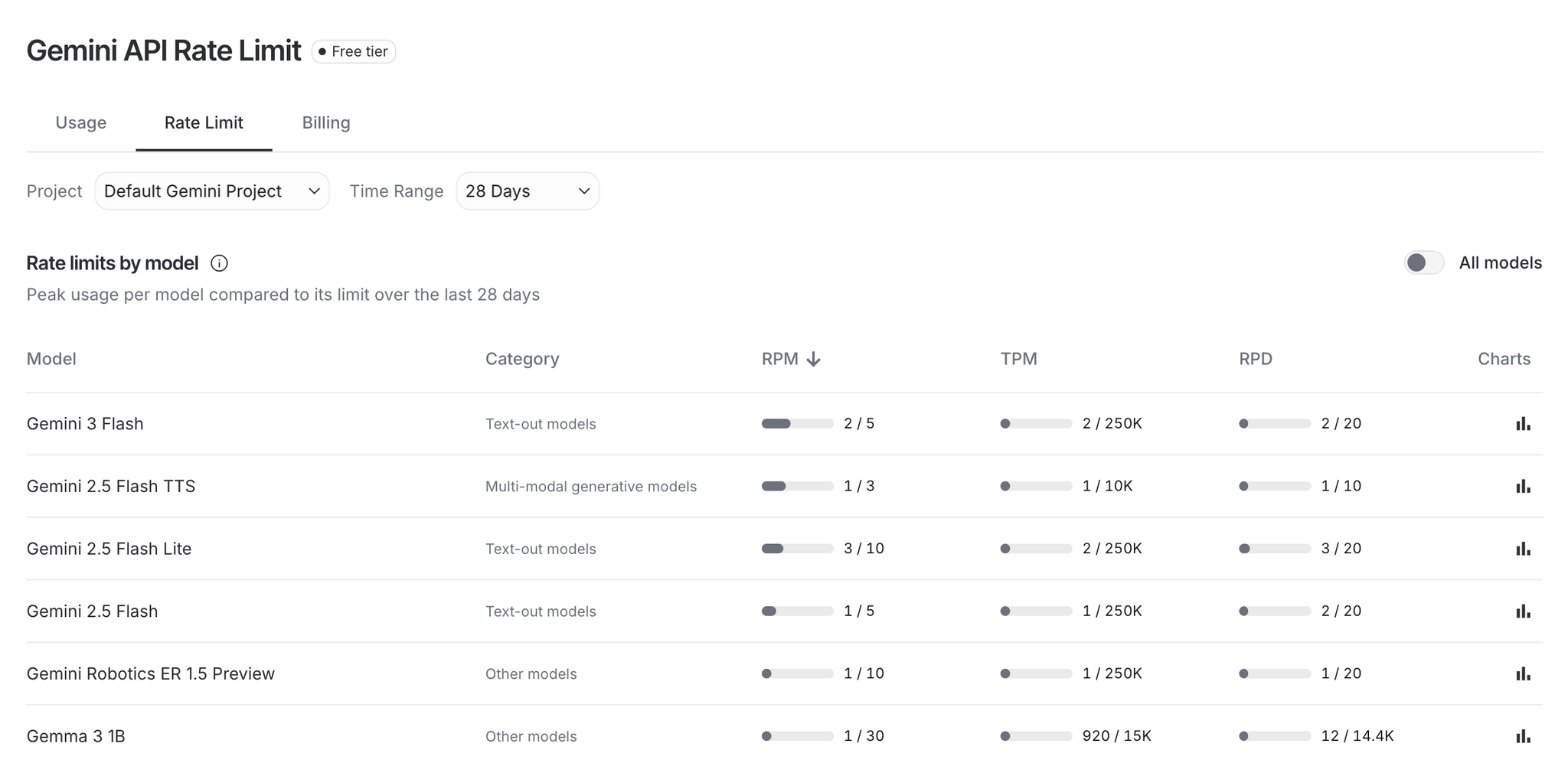
The default model is set to gemini-2.5-flash (I used a free-tier model due to budget constraints). You can switch models by editing only GEMINI_MODEL in .env. You can check per-model limits at https://aistudio.google.com/app/api-keys.
GEMINI_MODEL=gemini-2.0-flash
# or
GEMINI_MODEL=gemini-2.0-flash-lite
After editing, run docker compose up -d again to apply changes.
If you prefer changing it directly in the UI, click the Gemini Summarize & Analyze node and replace only the /models/
If you see model-related errors:
404 or 400 usually indicates a model name typo or an unsupported model.
429 indicates your API key quota is exhausted.
Choosing Test vs Prod mode
The URLs look similar, but the execution conditions differ. Test URL is http://localhost:5678/webhook-test/ytube, and before calling it, you must click Execute workflow so the workflow becomes Waiting for trigger event. Prod URL is http://localhost:5678/webhook/ytube, and the workflow must be Active for it to work. It is important to confirm which mode you are using and match the URL accordingly.
For my purposes today, I did not need Prod mode. Click Execute workflow first, then send the request.
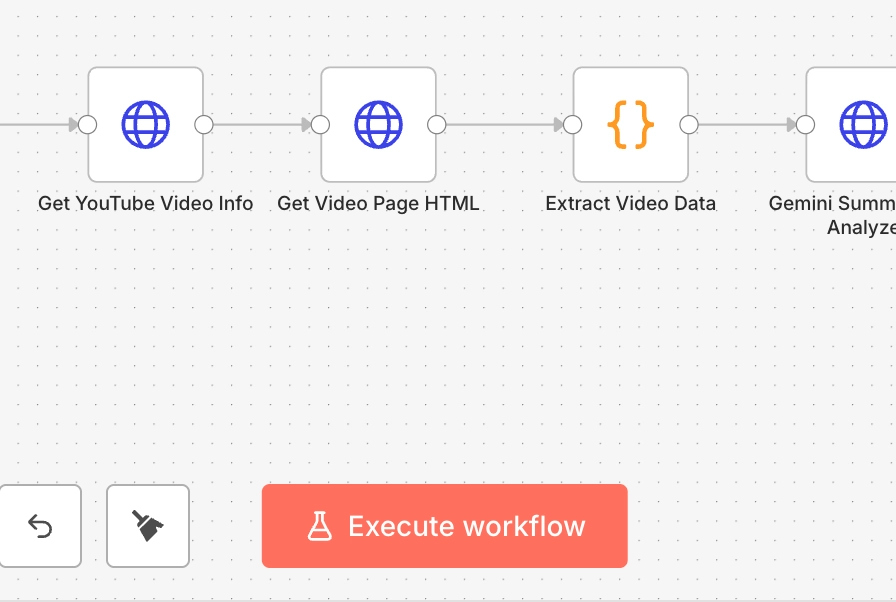
Execute workflow button
Sending a request with curl
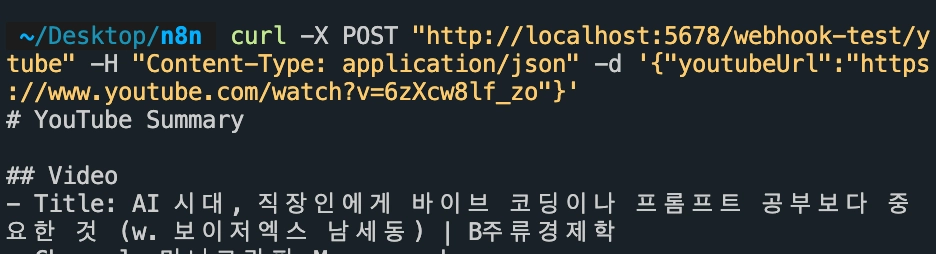
curl request example
curl is a command-line tool that lets you send HTTP requests directly from the terminal. It’s the fastest way to validate webhook input.
Only the URL changes between Test and Prod mode; everything else remains the same.
Test mode:
curl -X POST "http://localhost:5678/webhook-test/ytube" \
  -H "Content-Type: application/json" \
  -d '{"youtubeUrl":"https://www.youtube.com/watch?v=6zXcw8lf_zo"}'
Prod mode:
curl -X POST "http://localhost:5678/webhook/ytube" \
  -H "Content-Type: application/json" \
  -d '{"youtubeUrl":"https://www.youtube.com/watch?v=6zXcw8lf_zo"}'
-X POSTsets the webhook method,-Hdeclares that the body is JSON, and-dprovides the actual payload. The payload key must beyoutubeUrl.
Confirming the .md file is created
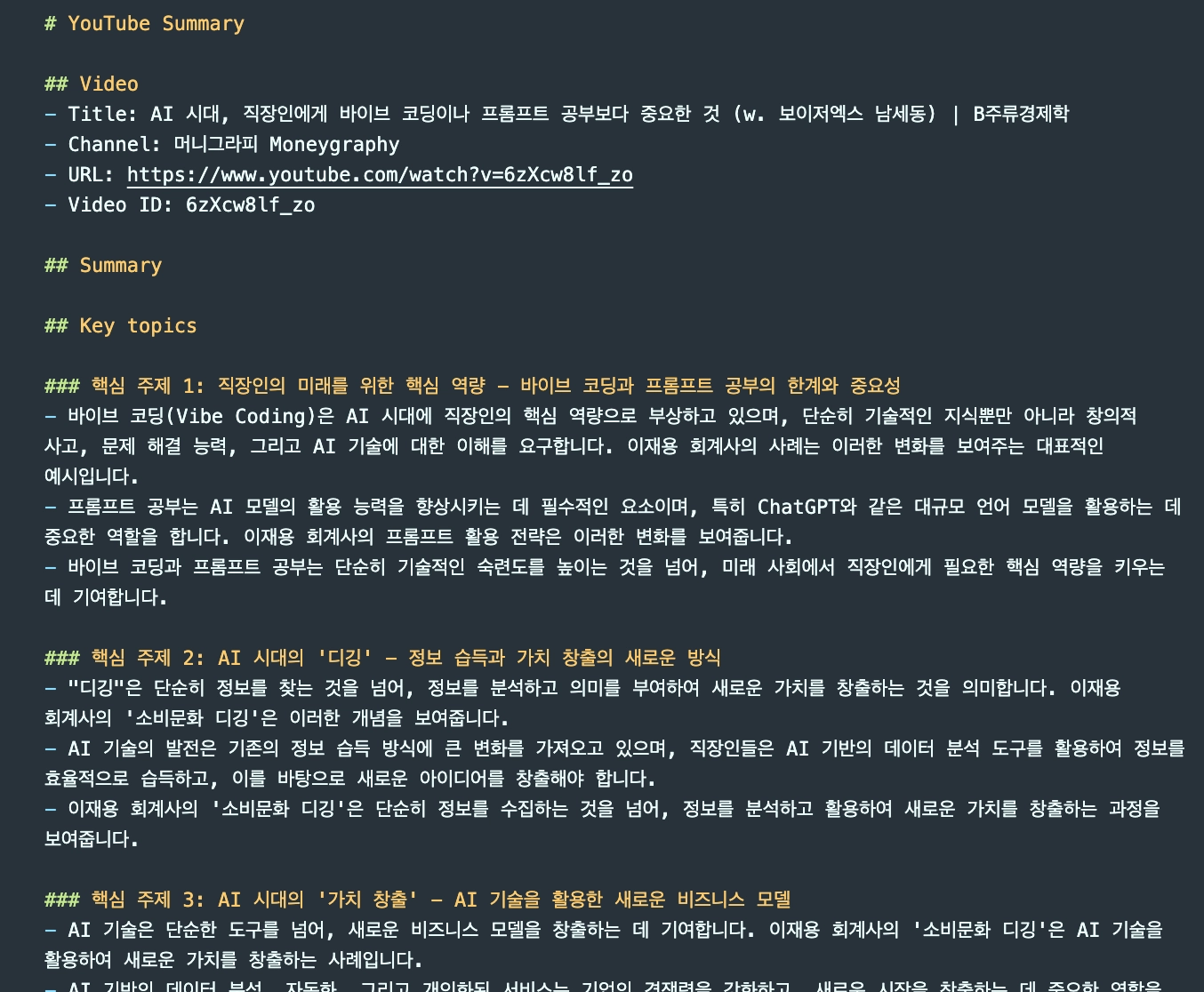
Generated md file list
To confirm whether the Save Markdown File node actually saved the output, run:
ls -lt ~/Desktop/n8n/summaries | head
If a .md file with the current timestamp is present, the workflow executed end-to-end successfully.
I tested this using a Moneygraphy video I’ve been watching often lately.
Common failure points
The places where things break are fairly predictable.
404 webhook not registered is when you didn’t click Execute workflow in Test mode, or didn’t enable Active in Prod mode. Failed to parse request body is when the URL includes escaped characters like \? or \=. If access to env vars denied appears, check N8N_BLOCK_ENV_ACCESS_IN_NODE=false. Unrecognized node type: n8n-nodes-base.executeCommand means you should check whether NODES_EXCLUDE=["n8n-nodes-base.localFileTrigger"] is still being applied.
About the current workflow structure
I simplified the older, more complex transcript-based flow and removed the LangChain-heavy dependency. The current system runs as oEmbed + HTML parsing + HTTP model call. The model is gemma-3-1b-it. The response is returned as Markdown and automatically saved as a .md file. The core advantage is that it can summarize videos even when transcripts do not exist.
Customization Points
The baseline setup works, but in practice you quickly find places that need adjustment: summaries are too shallow, switching models forces you to open JSON every time, or outputs are not saved anywhere. The following three changes were made to solve those issues.
Structuring the output format
Summaries generated with the default prompt were too minimal. They didn’t capture topic transitions, and there was no timeline-level structure. To fix this, I redesigned the prompt in the Gemini Summarize & Analyze node into a four-stage structure.
The output order is fixed as follows:
- Key topics: core topics and supporting evidence
- Topic shift map: when the topic shifts and what signals indicate the shift
- Detailed timeline summary: segment-by-segment analysis
- Next steps: follow-up items to review
At the end of the prompt, I explicitly listed rules: no unsupported speculation, clearly state uncertainty when uncertain, and avoid unnecessary introductions and disclaimer text. I adjusted generation settings to temperature 0.55 and maxOutputTokens 3200 to balance creativity with consistency while ensuring sufficient length.
Dynamic model selection
At first, I hard-coded the model name inside the workflow JSON. Switching models required opening the file, manually editing the URL string, and re-importing. When quota limitations force frequent model switching, this becomes tedious.
The fix is simple: replace the model segment of the URL with an environment variable.
"url": "=https://generativelanguage.googleapis.com/v1beta/models/{{ $env.GEMINI_MODEL || 'gemma-3-1b-it' }}:generateContent?key={{ $env.GOOGLE_GEMINI_API_KEY }}"
Now you can change only GEMINI_MODEL in .env and run docker compose up -d. No workflow JSON edits required. I also left a commented list of available models inside .env so I can choose based on quota status.
Auto-saving Markdown files
If the workflow runs but nothing remains afterward, it’s not useful. I added a Save Markdown File node after Response Object. It’s an Execute Command node that calls the save-summary-md.sh script and saves the result to disk.
I initially wrote the saver in Python and it failed because the n8n Docker image does not include Python. Since Node.js is included by default, I switched languages. The save path is /workspace/summaries, and the filename is generated automatically based on execution time and video title, in the form 20260216-123039-slugified-title.md.
ls -lt ~/Desktop/n8n/summaries | head
After execution, run this command to confirm the file was created.
Errata / Study Notes
- Q. Why did I create a Dockerfile and docker-compose.yml?
- A.
- Dockerfile
- When it appears: when you want to build your own n8n image that includes custom nodes on top of a base image
- Why you use it: to keep the same environment/nodes even when recreating containers
- docker-compose.yml
- When it appears: when you want to manage run options (ports, env vars, volumes) cleanly
- Why you use it: so you can run/restart/manage configuration with a single docker compose up -d
-
curl structure
curl is a tool that sends HTTP requests directly from the terminal. You can think of it as doing what the browser does, but through a command. When you type a URL into the browser, the browser sends a request and returns a response—curl lets you run that process as text in your terminal.
In this workflow, curl is used to test the webhook directly. n8n workflows start only when an external POST request comes in, and a browser typically sends GET requests by default. curl is a better fit here because it allows you to specify the request method.
curl -X POST "http://localhost:5678/webhook-test/ytube" \
  -H "Content-Type: application/json" \
  -d '{"youtubeUrl":"https://www.youtube.com/watch?v=6zXcw8lf_zo"}'
This command delivers three pieces of information:
First,
-X POSTspecifies the request method. HTTP requests have multiple types. GET is for reading data; POST is for sending data. Since the n8n webhook must receive data to trigger, you must explicitly specify POST. If you omit this option, curl will send a GET request by default and the webhook will not respond.Second,
-H "Content-Type: application/json"tells the server, “the data I’m sending is JSON.” Headers are metadata that describe the request separately from the body. Without this header, the server may not know how to parse the body and can fail.Third,
-dprovides the actual payload. Here it sends a JSON object where the key is youtubeUrl and the value is the YouTube URL. The outer payload is wrapped in single quotes because JSON itself uses double quotes internally; wrapping the whole thing in double quotes causes conflicts.In summary:
-X POSTdefines how you send the request,-Hdefines what format the data is in, and-ddefines what the actual content is. If any of these are missing or incorrect, the workflow may not trigger or the request parsing may fail.
Use these generated Markdown summaries only for personal study or to save time. Copyright matters.